Google Drive
This guide explains how to connect a new Google Drive document source to GESCON. After configuration and the initial synchronization, the files selected for updates will be available to the organization's agents.
Opening the Data section
- Sign in to GESCON with an administrator account.
- Open the menu in the top-left corner, select Settings > Data, and open Documents. This page shows connected sources and the option to add a new one.
Adding a document source
- Select Add source in the top-right corner and choose Documents from the menu.
- The document source form opens. Under Configuration:
- Under Service, select Google Drive from the available services.
- Enter a descriptive Name, such as "HR department Google Drive." Make sure it is unique.
- Optionally add a Description explaining what files are associated with the connection.
- Select Next.
A specific name and description make the source easier to identify when several data connections exist.
Authorizing the Google Drive connection
The Connection tab provides two ways to grant GESCON access to files.
Full synchronization authorization
This option lets GESCON synchronize files in folders you select in the next step. The person authorizing GESCON must be an administrator of the Google account that owns the Google Drive data. They must follow the steps under Add the Google service account.
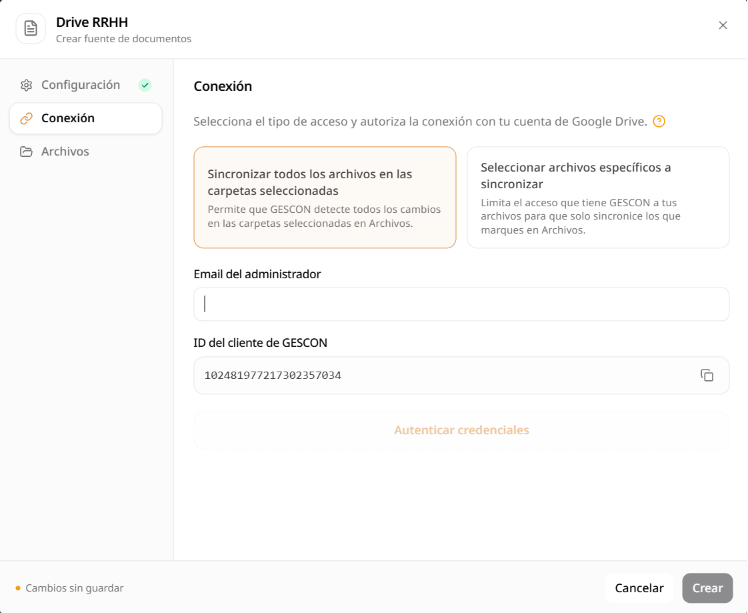
Add the Google service account
Open the Google Admin console and go to Security > API Controls.
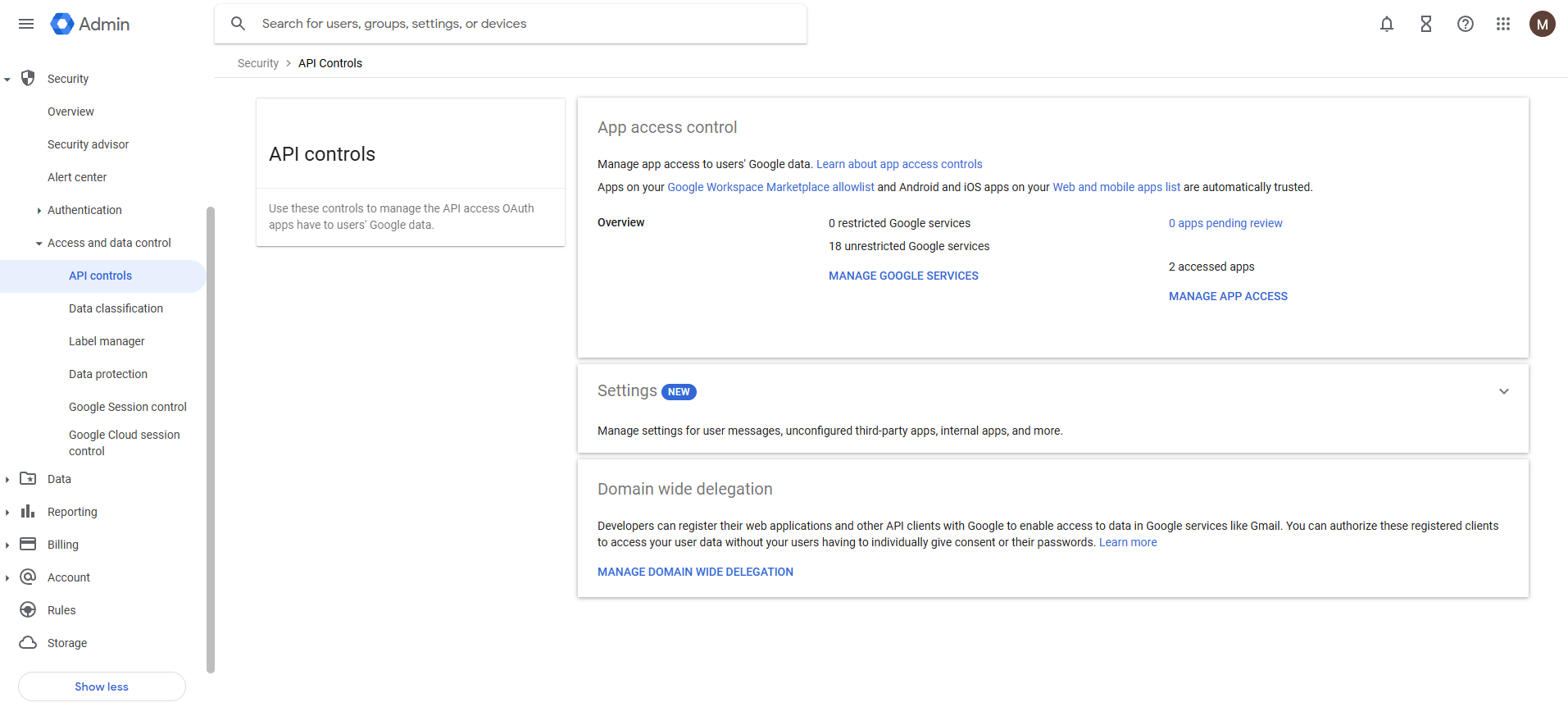
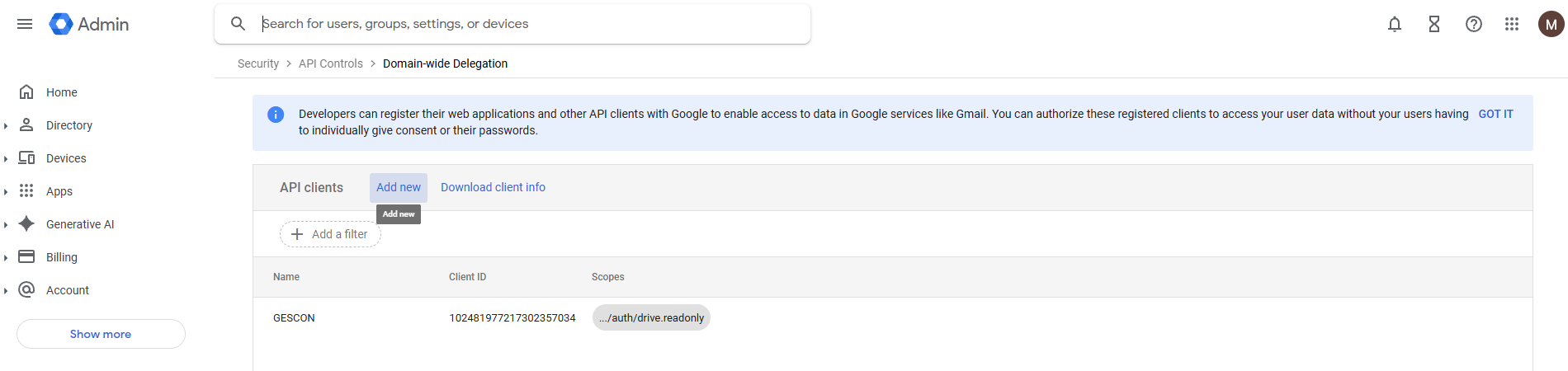
Open Domain Wide Delegation and add the GESCON client with the scope https://www.googleapis.com/auth/drive.readonly. Copy the GESCON Client ID from the form: 102481977217302357034.
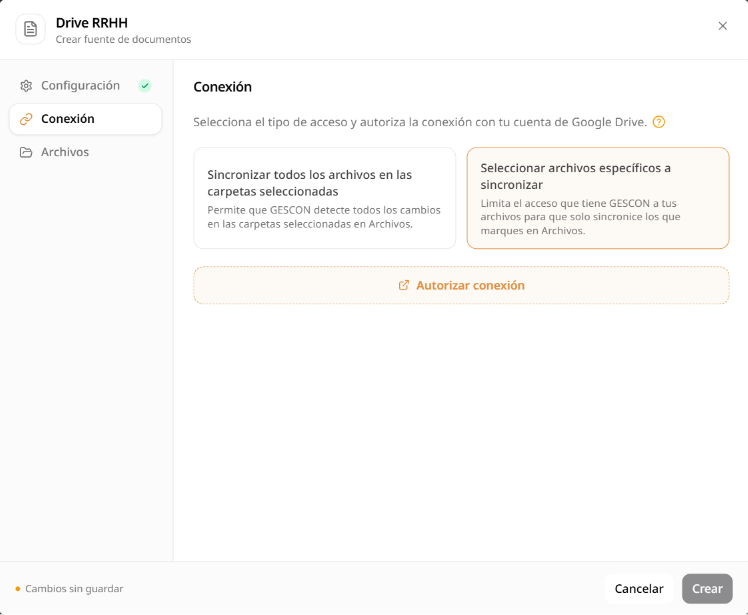
Limited synchronization authorization
With this option, GESCON can access only the files you select. It does not read individual folders and processes files only. This option does not detect newly created documents, so update the selection whenever you want to add another document to the knowledge base.
- Sign in with the Google Drive account containing the documents to synchronize.
- Accept the requested permissions. After authentication, the wizard shows the Connected state.
- Select Next.
Selecting shared drives and files
- Depending on the permissions granted in the previous step, select either a shared drive and its main folders for full synchronization or individual accessible files for limited synchronization. In the limited case, selecting folders does not affect synchronization, but it helps identify the folders containing the files.
- Review the selection and confirm that it contains all the information you want to include.
Creating the document source
- After selecting folders or files, select Save. GESCON saves the source and starts the initial synchronization.
- A confirmation message indicates that the document source was created. The new source appears under Connected document sources with the Connected or Pending configuration state, depending on data volume.
Monitoring synchronization
After creating the connection, the Connected document sources table shows its state and last synchronization date. From there, you can:
- Edit or delete the source with the pencil or trash icon.
- Review the number of documents and folders currently synchronized.
Troubleshooting
- The shared Google Drive does not appear: confirm that the Google user can access it. Refresh the list or authorize the connection again.
- Authentication error: verify the Google credentials and confirm that the linked account has organization Administrator permissions. Full synchronization authorization can only be granted by an administrator.
- Incomplete synchronization: verify that selected folders do not have restricted permissions. Only documents accessible to GESCON are synchronized.
Next steps
After synchronizing Google Drive, you can:
- Configure agents to use the new source in conversations.
- Add other data sources, such as SharePoint, databases, or APIs, to expand the knowledge base.
- Manage users and permissions to control who can edit or delete document sources.